
The TinyFingers app
Games for tiny fingers
21 ad-free games for little ones (18 months to 7 years).
Choose my device
Choose your device
Why play in the app?
Fewer accidental exits
Device-specific settings help your child stay in the game.
Ad-free
There are no ads in the app, even between games.
Play offline
Go online to check your access before you head out. The games are already in the app.
What else can you play besides the keyboard game?
Tap a key to make a letter, number or emoji appear. Your child can also make up a tune on the eight-note xylophone, sort objects by colour or bring a drawing to life.
Scribumi
Even a dot can become a character.
Discover the game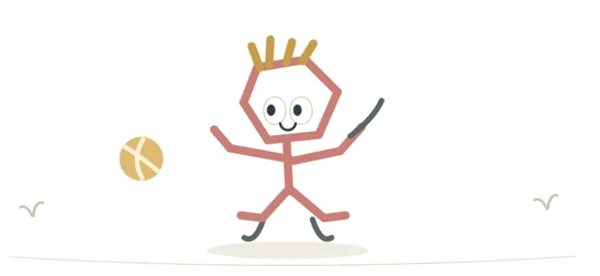
TinyFingers in action
See letters and emojis pop up, hear a tune on the xylophone and watch a doodle come to life in Scribumi.
Frequently asked questions
Do I need a subscription to play?
The app is free to install. To play in the app, choose a monthly or yearly subscription in your app store. You don’t need a TinyFingers account. You can also try the games for free on our website.
What games are included, and who are they for?
The app has 21 games. Your child can make letters appear by pressing keys, make up a tune on the xylophone, bring a drawing to life or find matching pairs.
From 18 months, children can explore Peekaboo House with an adult. Some logic games are suitable for children up to age 7. See the TinyFingers game catalogue for the recommended age for each game.
What devices can I install TinyFingers on?
TinyFingers is available for iPhone, iPad and Mac on the App Store, and for Android phones and tablets on Google Play.
Can I use my subscription on more than one device?
On iPhone, iPad and Mac, use the Apple Account you subscribed with. On another compatible Android device, use the Google Account you subscribed with. If needed, connect to the internet and choose “Restore purchases”. Your subscription is tied to the store you bought it from.
Do you need a keyboard to play?
On phones and tablets, the games use touch controls. The keyboard game has its own on-screen keys.
On a computer, pressing a key makes a letter, number or emoji appear. Your child can also draw a trail of light with the mouse or trackpad. On Windows, you can play the game in your browser.
Can you play without an internet connection?
Yes. The games are included in the app. Before heading out, open TinyFingers while connected to the internet to check your access. You can then play offline for up to 30 days after that check, as long as your paid subscription period hasn’t ended.
How do I open the parent settings during a game?
Press and hold “Parents” in the top-left corner for about two seconds. From there, you can do things like turn off the sound before returning to the game.
How can I reduce accidental exits?
On iPhone and iPad, turn on Guided Access in the Accessibility settings and keep touch enabled.
On Android, use app pinning. The menus and the gesture for unpinning vary by device.
On Mac, the guide in the Parents area explains how to adjust the function keys and Mission Control shortcuts.
On Windows, you can already play in your browser. Some keyboard shortcuts may take you out of full screen. The guide also describes the Windows app’s child mode, which is still in development.
These settings help keep the game on screen. Before your child starts playing, make sure you know how to leave the mode you’ve chosen.
Where do saved drawings go?
Saved creations stay on the device. You don’t need a TinyFingers account, and drawings don’t sync between your phone and tablet. Deleting the app may erase the drawings saved in it.